
Vedu App is a great way to watch and enjoy movies and TV series on your Android phone or tablet. One of the best things about this app is that it lets you download your favorite content so you can watch it offline anytime—even without an internet connection. In this guide, we’ll walk you through every step to download movies and shows using the Vedu App.
Step-by-Step Guide to Download Movies & Series

Step 1. Open the Vedu App
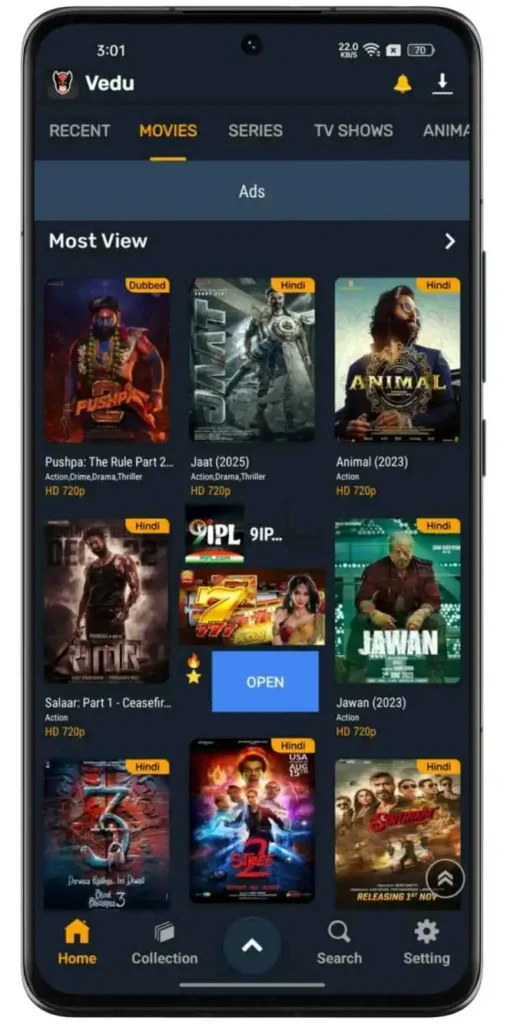
First, make sure you’ve installed the latest version of the Vedu App on your Android device. Once installed, tap on the Vedu icon to open the app.
Step 2. Browse or Search for a Movie or Series
On the home screen, you’ll find different categories like Trending, Latest, or Genres. You can scroll through these to find something to watch. Or, if you already know what you’re looking for, just use the search bar at the top.

Step 3. Select the Movie or Show
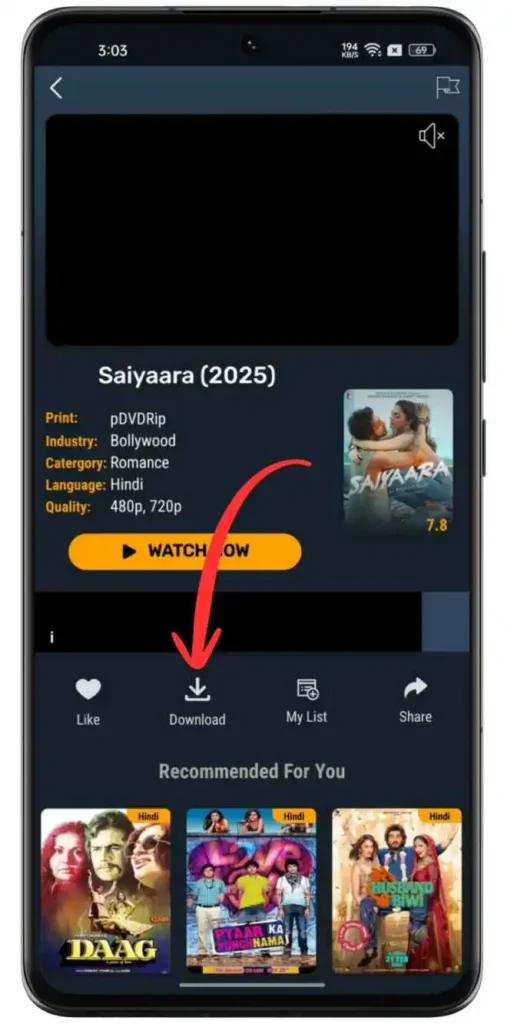
When you find the movie or series you want to download, tap on the thumbnail or poster. This will open a new screen with more information like the title, description, cast, and rating.
Step 4. Tap the Download Button
On the movie or show’s detail page, look for the Download button. This is usually located below the title or beside the Play button.
Step 5. Choose Video Quality
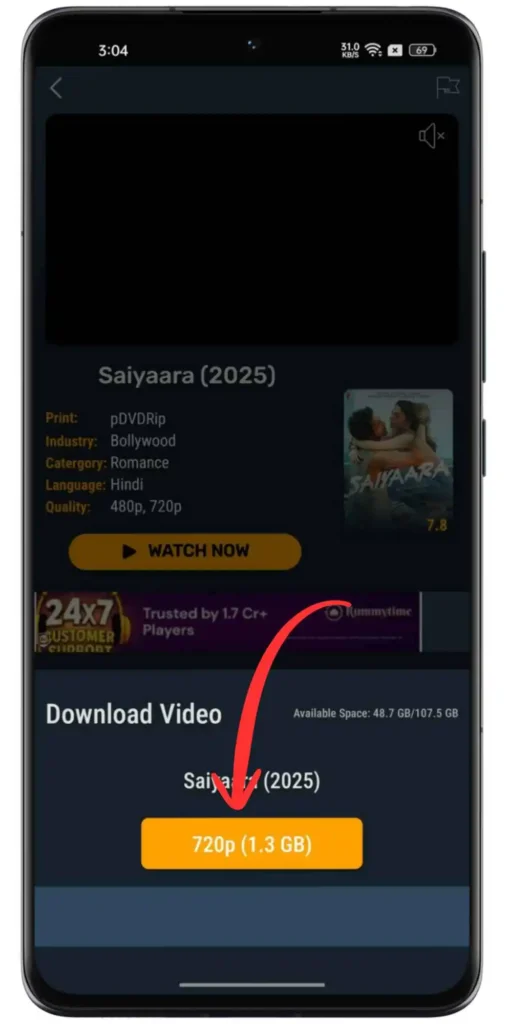
After you tap on the Download button, a new screen will appear showing you the available video quality options. These may include 480p, 720p, or 1080p, each with a different file size. Higher quality means better viewing, but it also uses more storage.
Step 6. Select Download Type
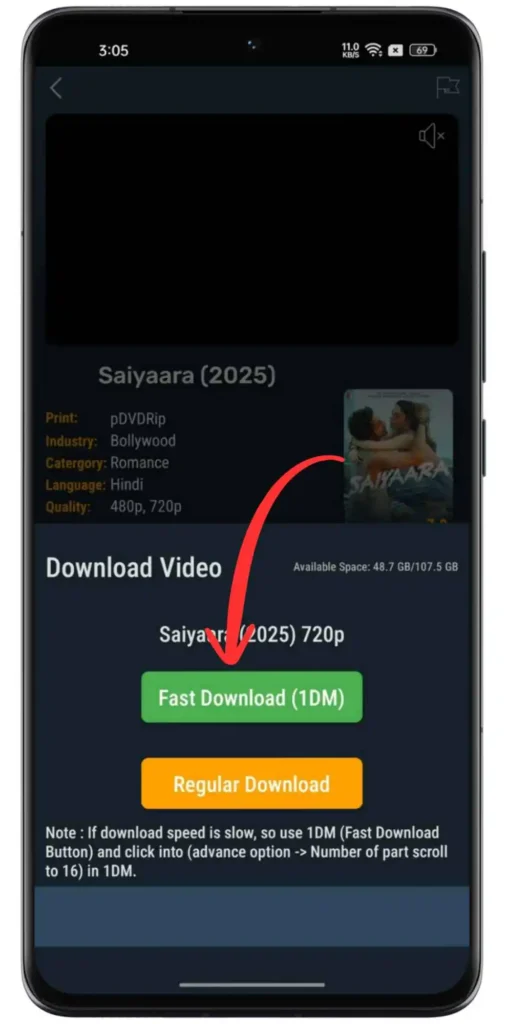
Once you choose the video quality, the app may show you two download options:
- Fast Download
- Regular Download
To avoid any issues, it’s best to select Regular Download for a more stable download experience.
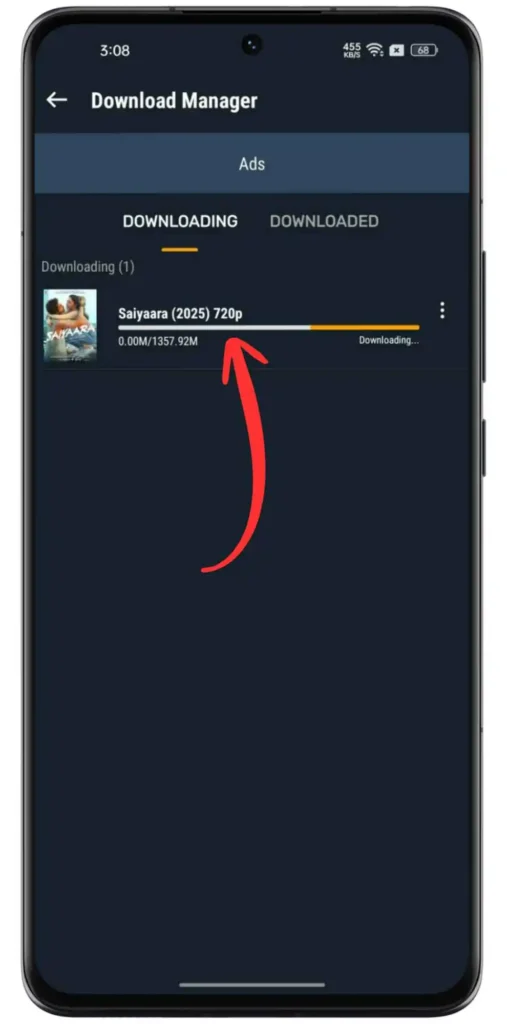
Step 7. Start the Download
After selecting your preferred download type, the app will begin downloading the file. You’ll usually see a download progress bar that shows you how much of the file has been downloaded.
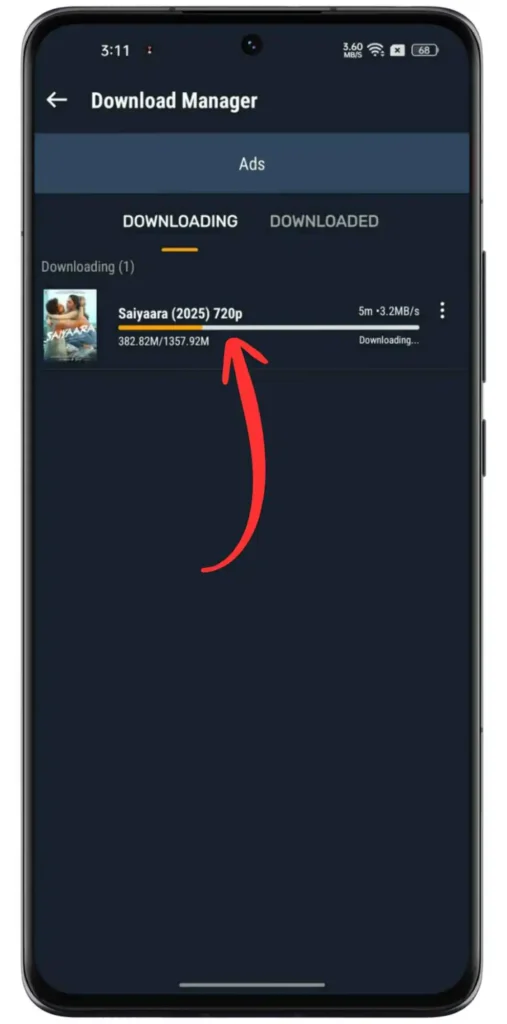
Step 8. Wait for the Download to Finish
Depending on your internet speed and the file size, the download might take a few seconds to a few minutes. Be patient and make sure not to close the app during the download.
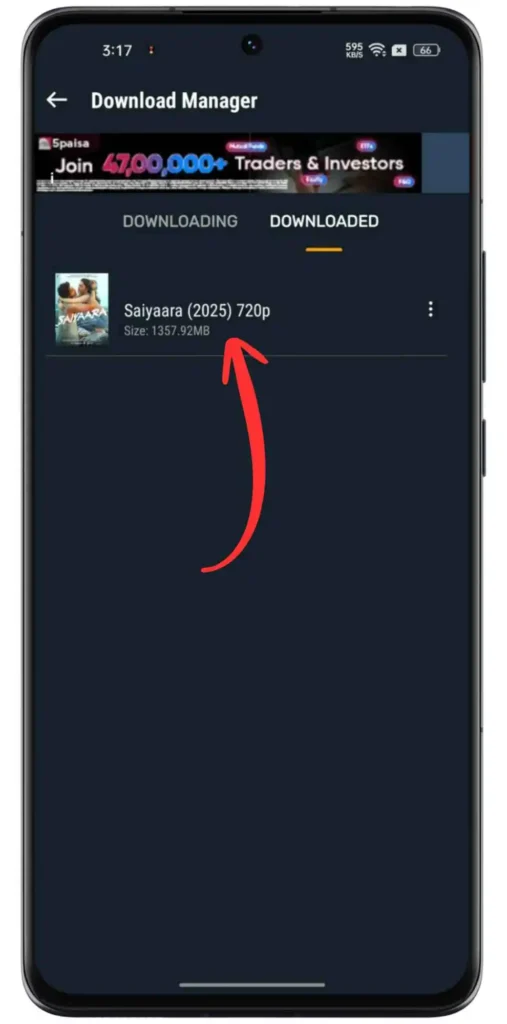
Step 9. Access Your Downloads
Once the download is complete, go to the Download section of the Vedu App. You can usually find this in the home interface of the app in the top right corner.
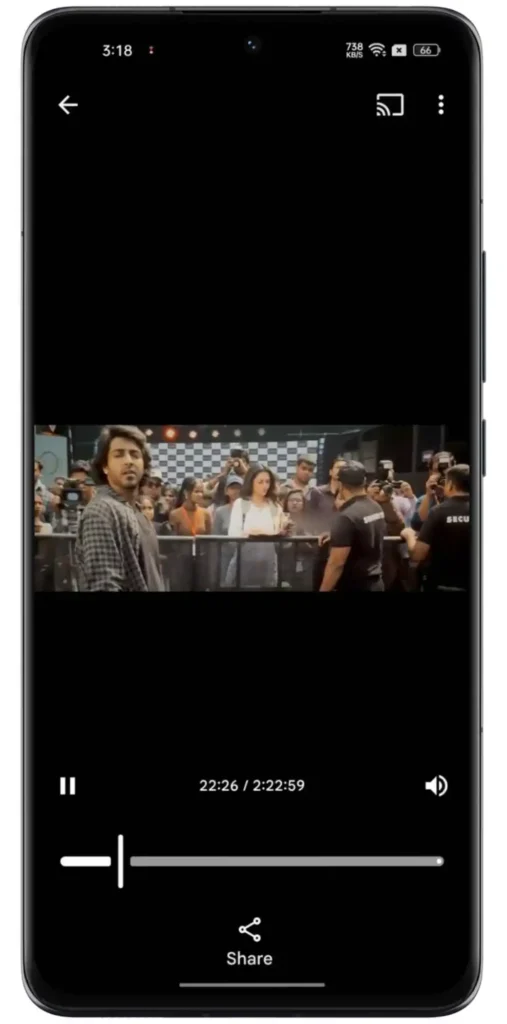
Step 10. Watch Offline Anytime
Tap on the downloaded movie or episode, and it will start playing right away, no internet is required!
Conclusion
Downloading movies and series using the Vedu App is simple and convenient. Whether you’re planning a long flight or want to save data, downloading your favorite content ensures you can enjoy it anytime, anywhere, even when you’re offline. Just follow the steps above, and you’ll be good to go!